iPhone setup
Follow these four steps once, and your lock screen wallpaper will update automatically every day.
Step 1: Set a Photo Lock Screen
For this to work, your lock screen wallpaper must be a Photo.
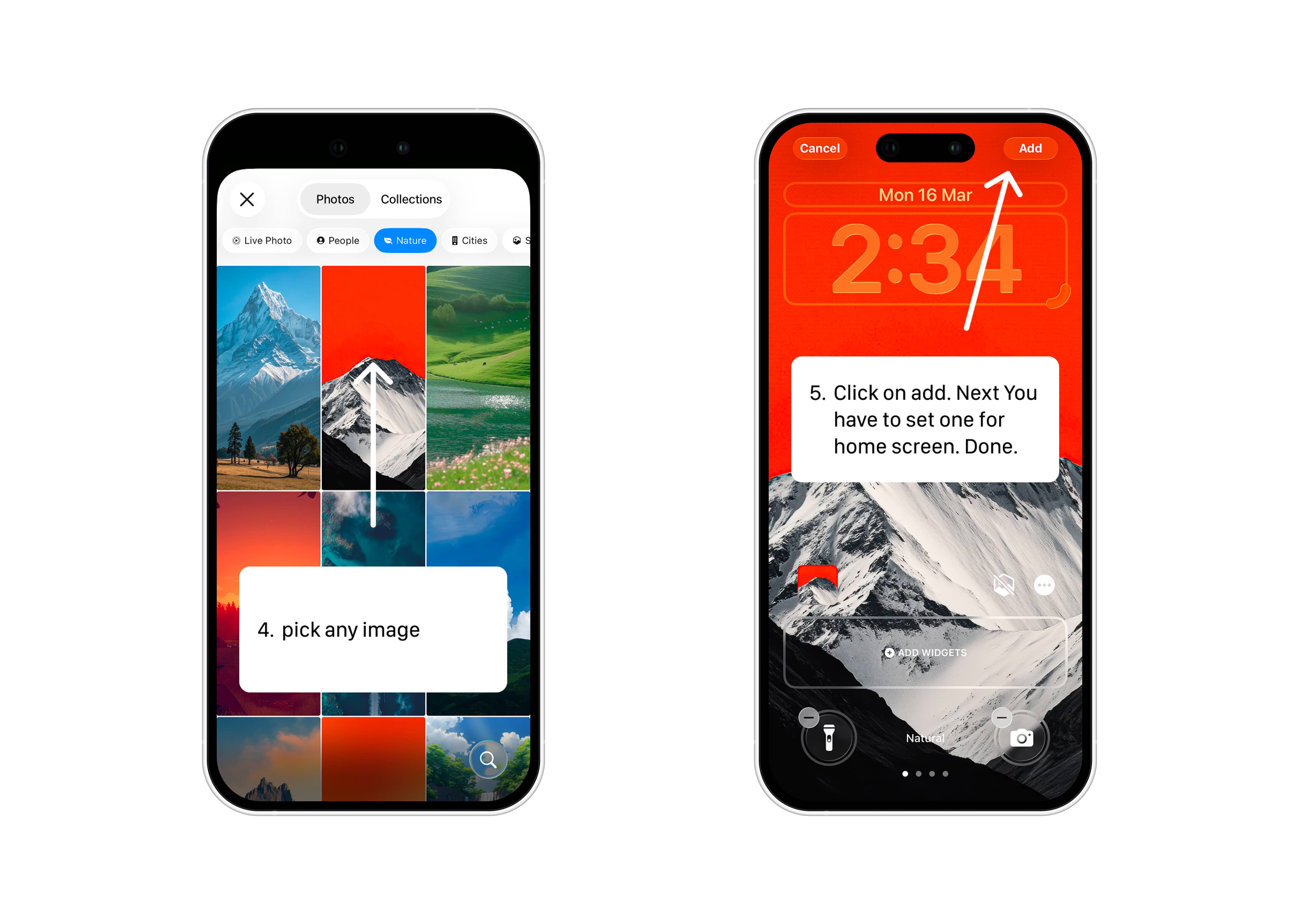
Long press your Lock Screen and tap +.
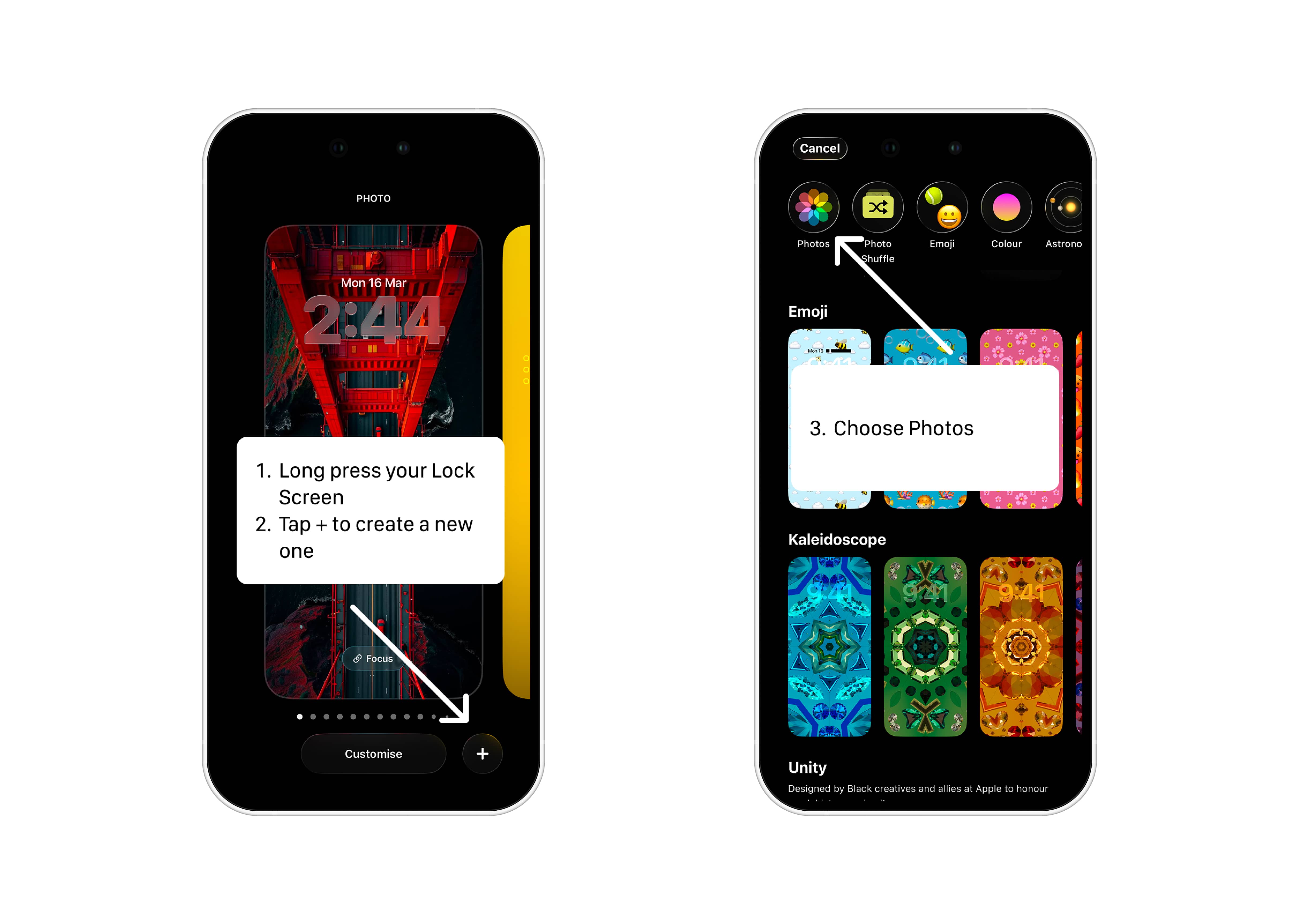
Choose Photos and select any image.
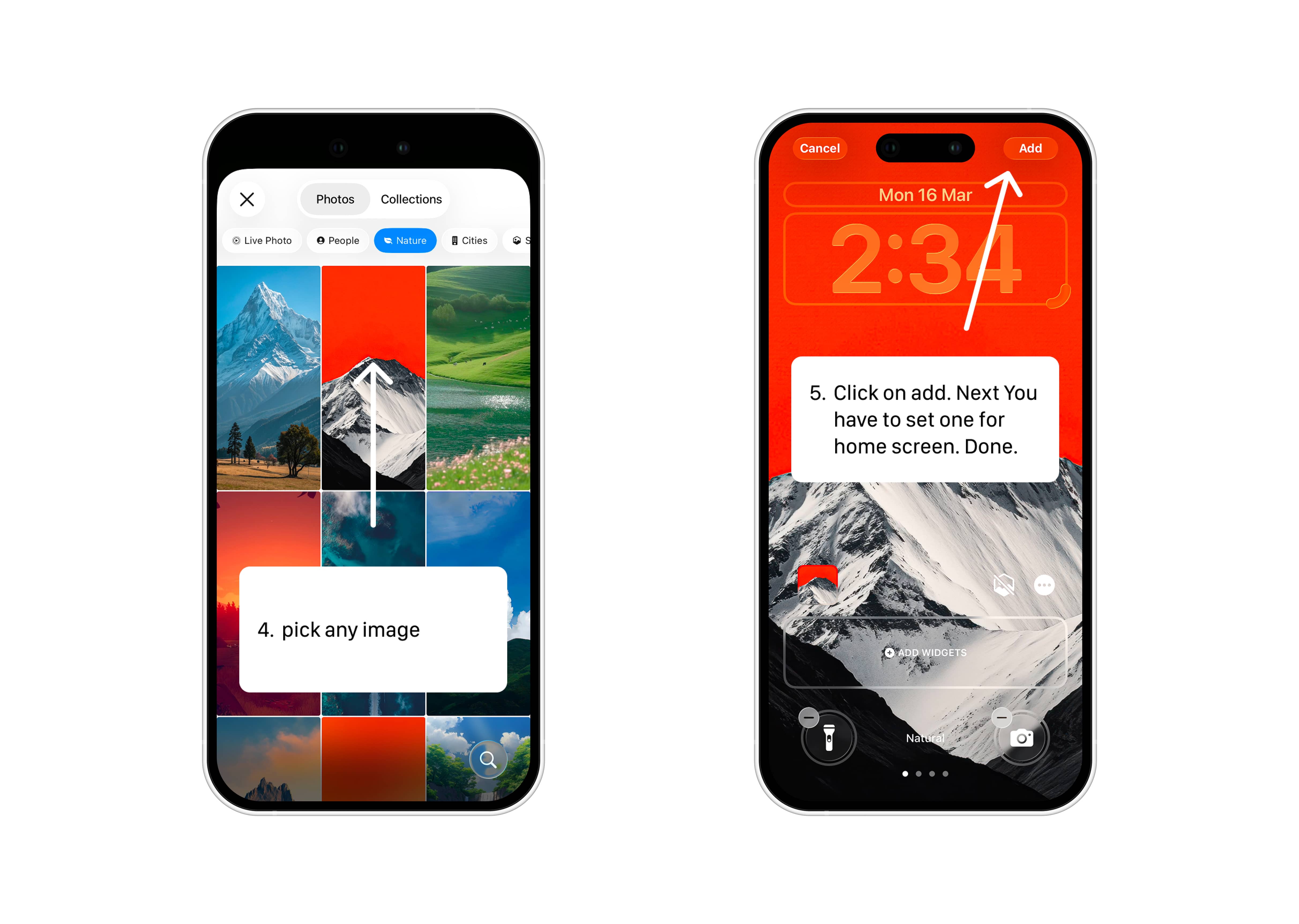
Set it as your Lock Screen wallpaper.
Step 2: Install the Lockscreen.pro Shortcut
Tap this link on your iPhone: Get iOS Shortcut
Tap Set Up Shortcut.
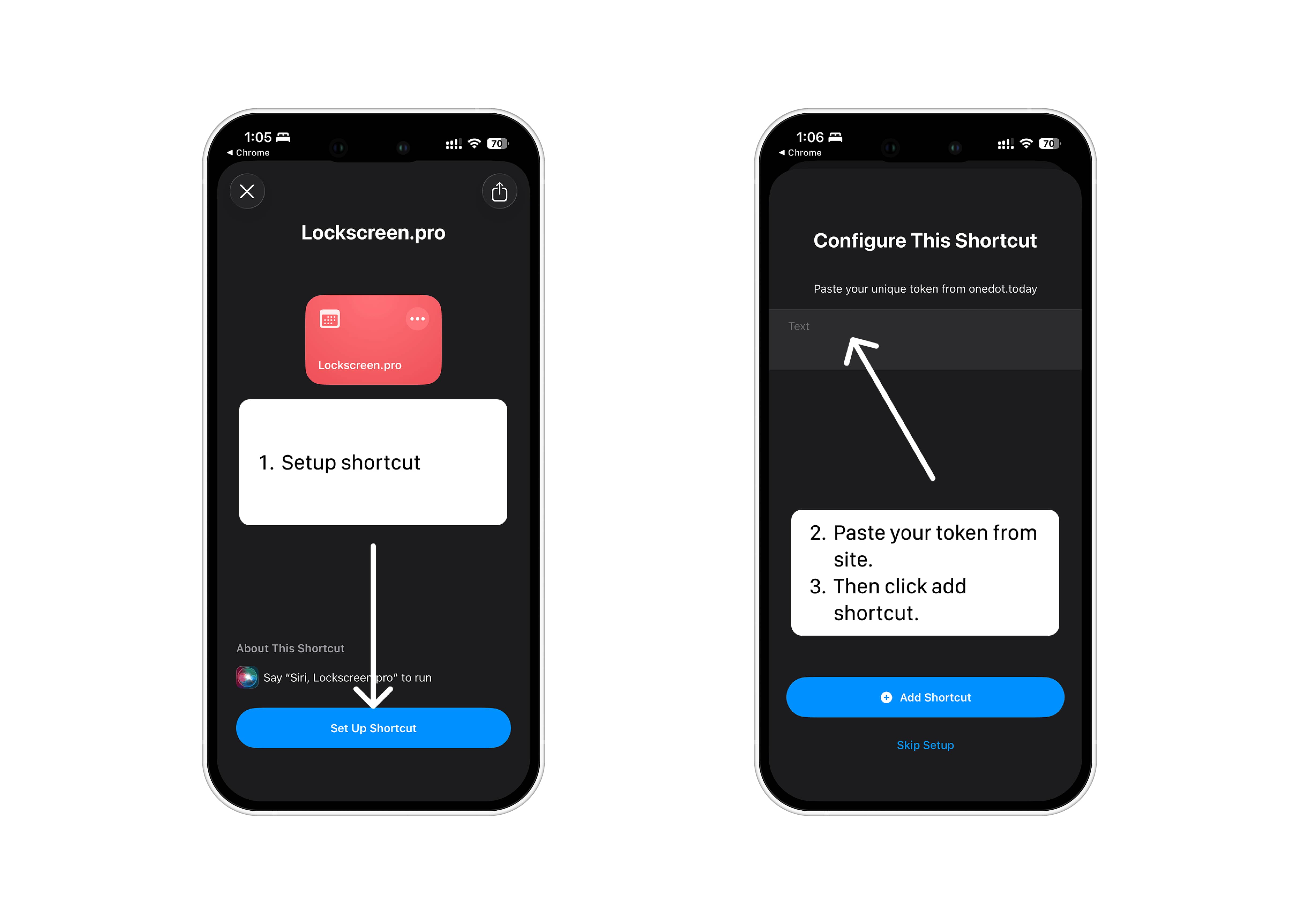
When asked, paste your unique token from Lockscreen.pro on the Wallpaper page.
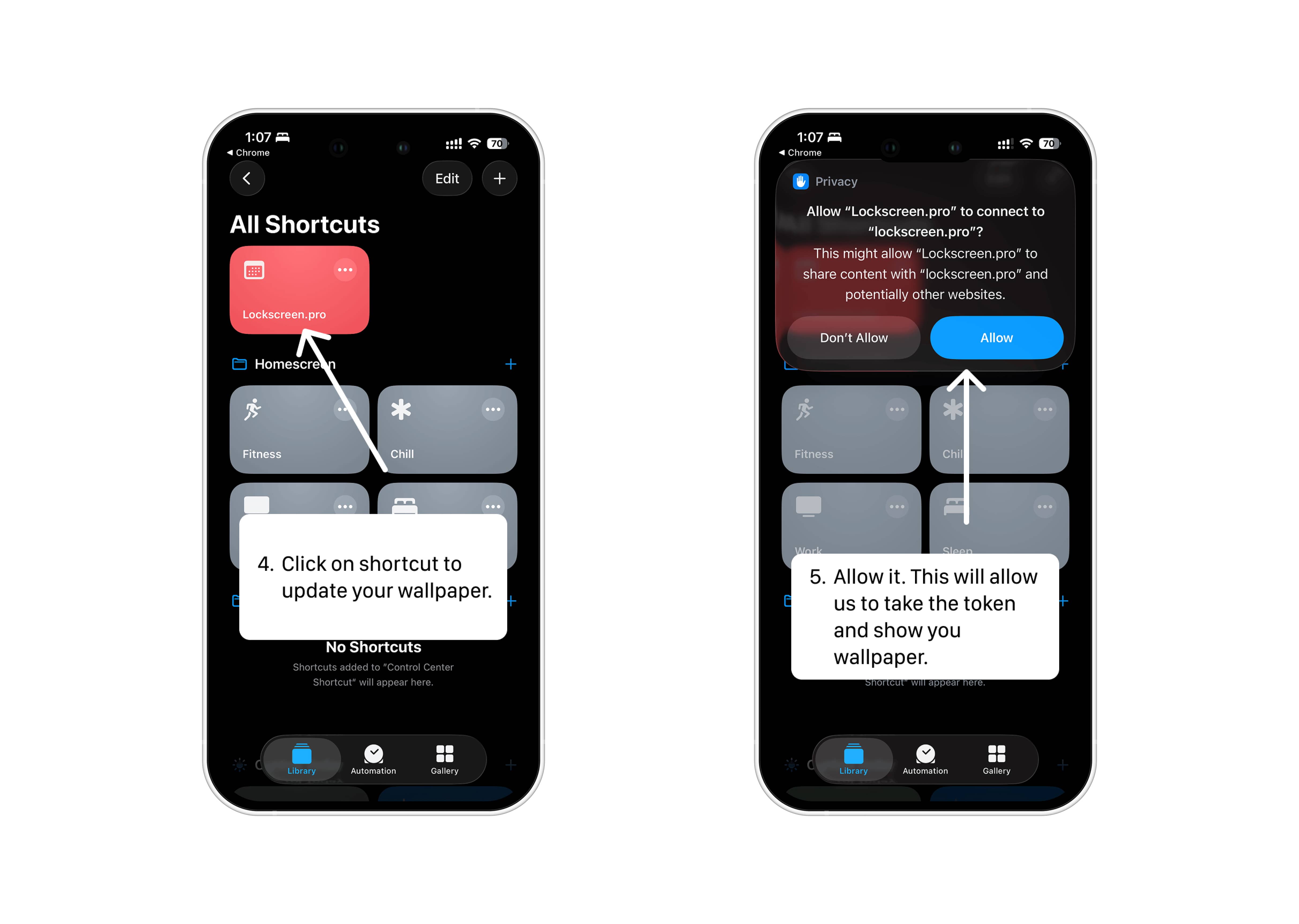
The shortcut will appear in your Shortcuts Library.
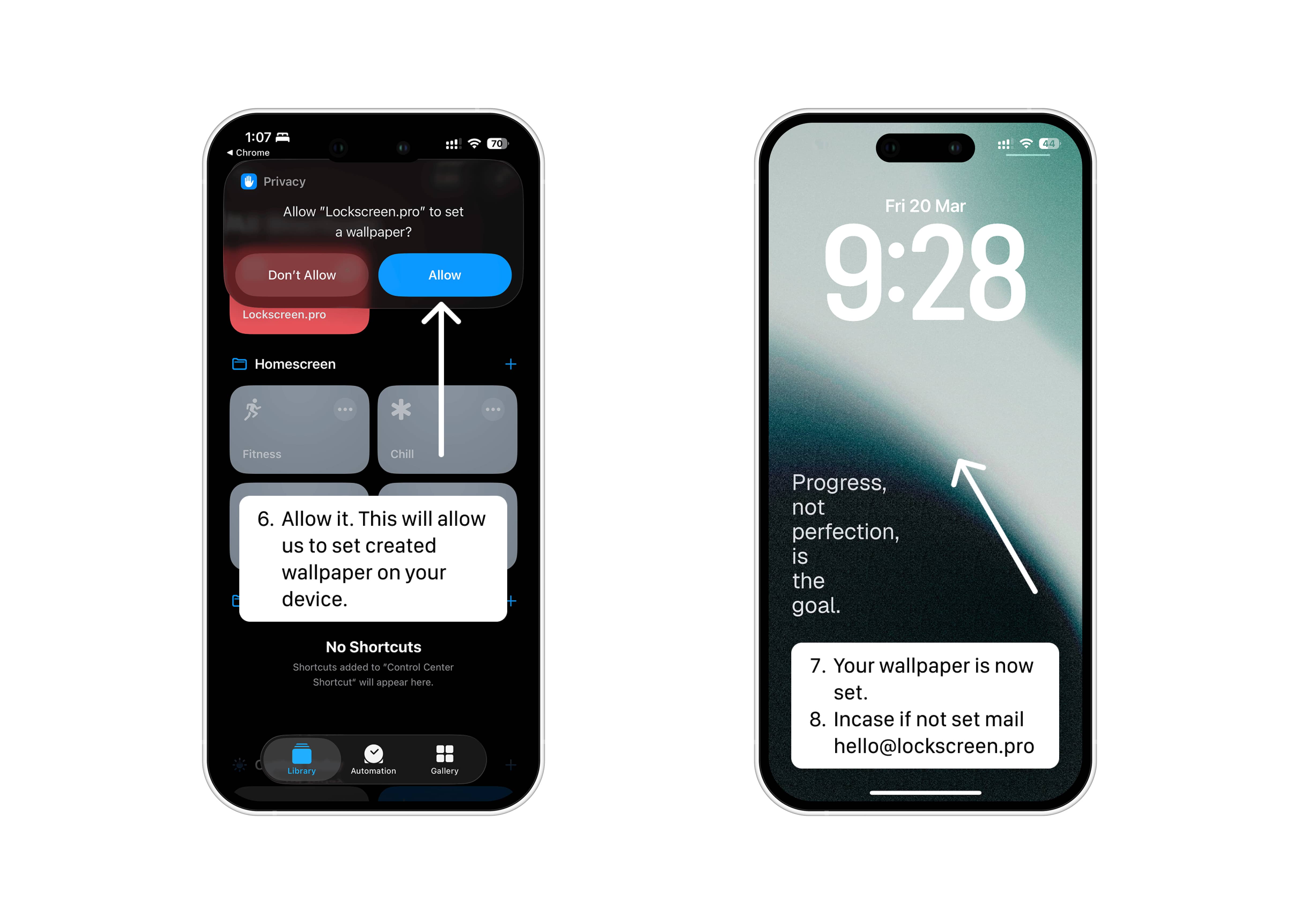
Run the shortcut once and tap Allow whenever prompted.
Check the lock screen to confirm the wallpaper was set.
Step 3: Create a Daily Automation
Open the Shortcuts app and go to Automations.
Tap New Automation and choose Time of Day.
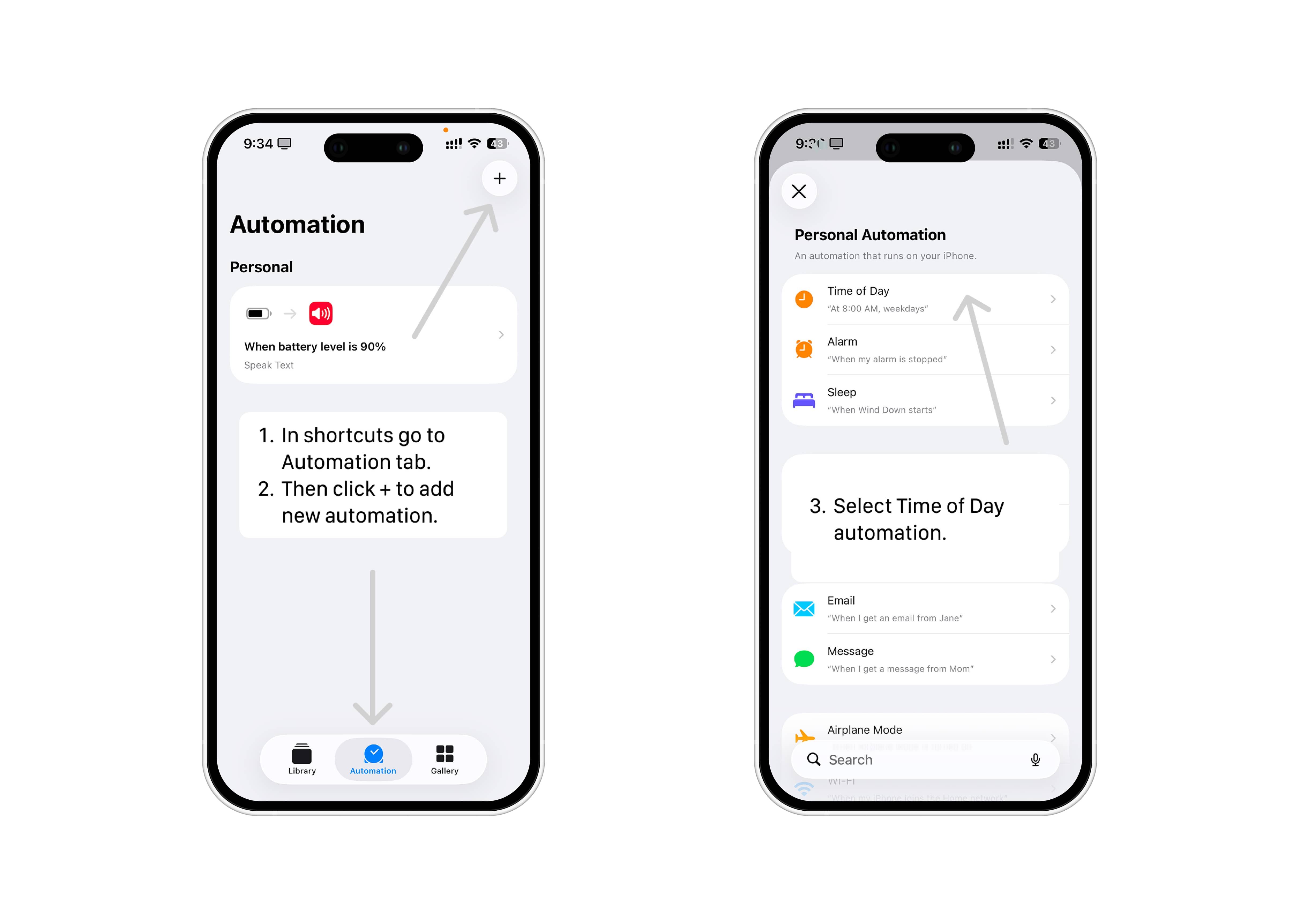
Choose a time, set it to Repeat Daily, and enable Run Immediately so it runs without asking you.
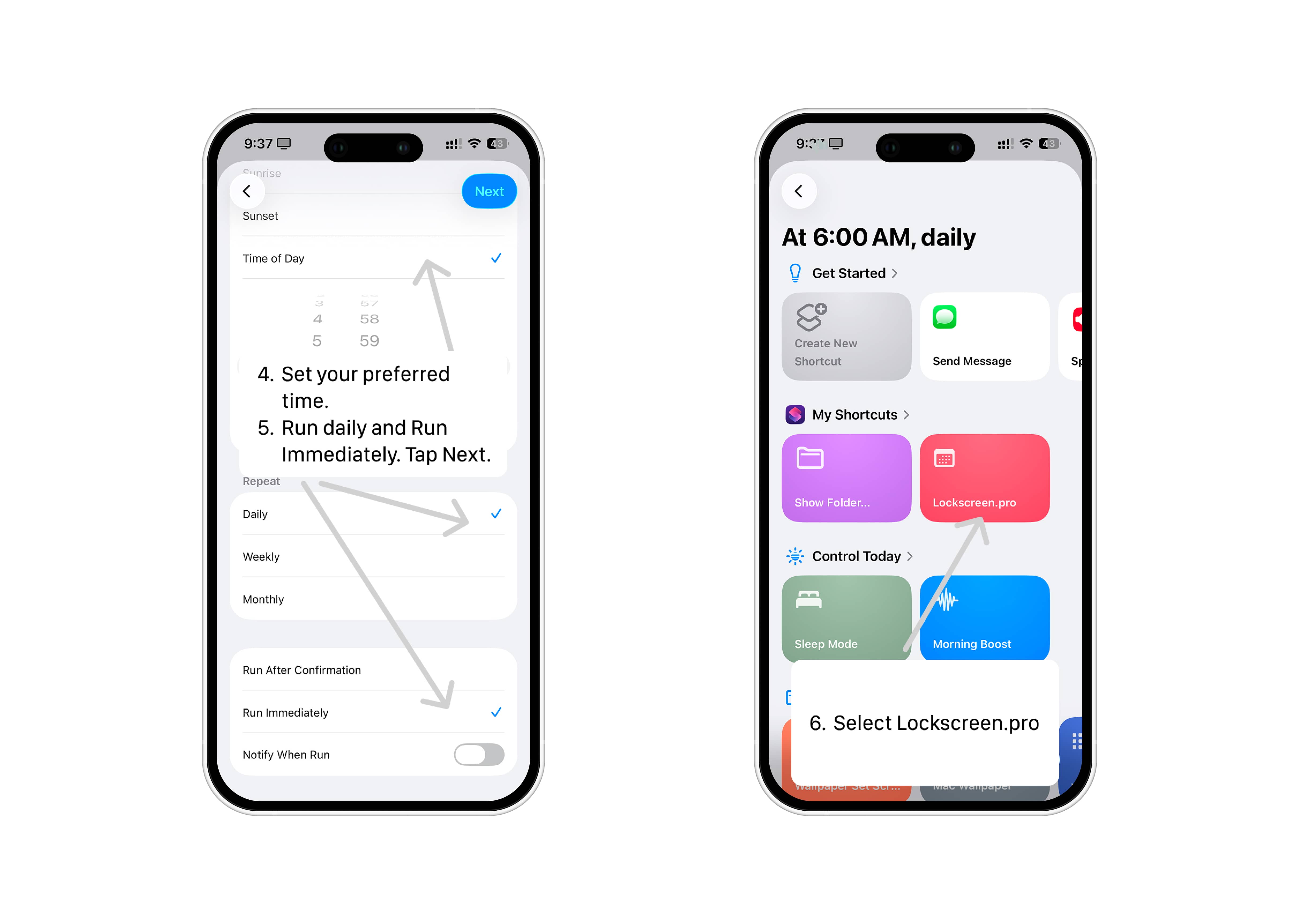
In Actions, choose the One Dot Wallpaper shortcut under My Shortcuts, then tap Done.
Now your lock screen will update automatically every day.
Step 4: Update Your Wallpaper Code
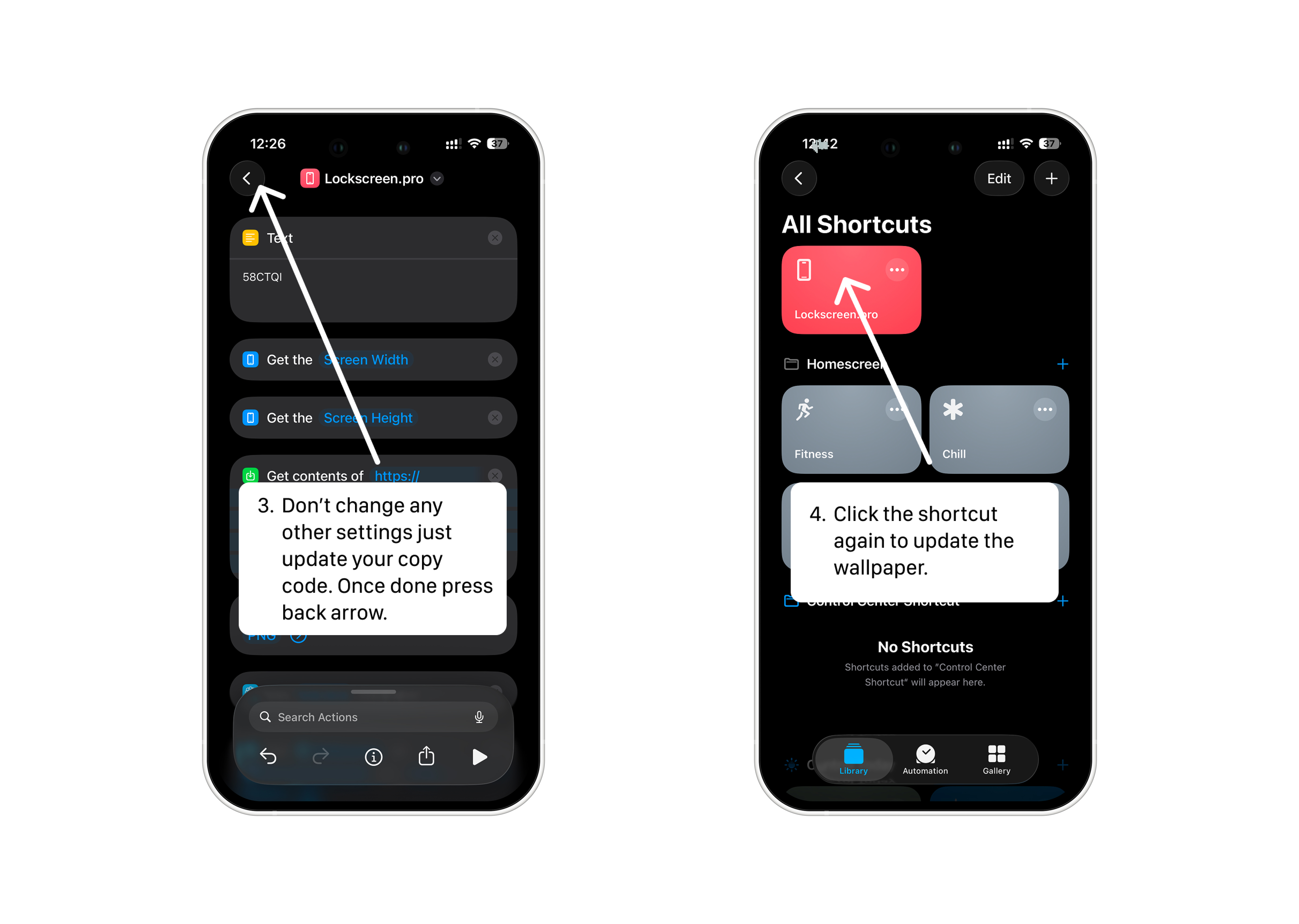
Whenever you copy a new wallpaper code from Lockscreen.Pro, update it inside your shortcut.
Open the Shortcuts app. If you use the free shortcut, open the free shortcut. If you use the Pro shortcut, tap the three dots on it to edit it.
Paste your new wallpaper code into the first Text field. Each time you copy a new wallpaper, replace the old code here.
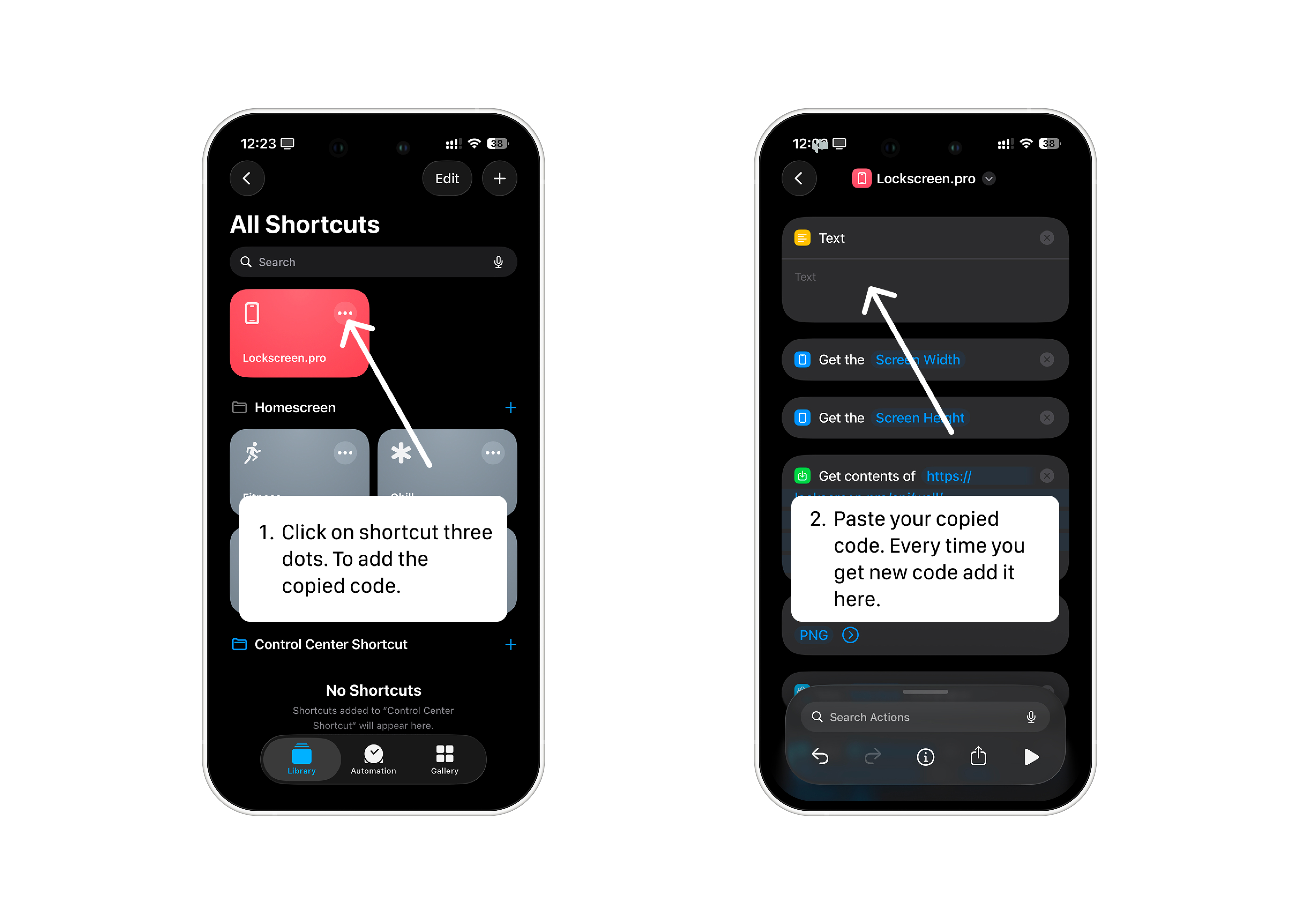
Don't change anything else. Tap the back arrow to save and close the shortcut editor.
Run the shortcut once to update your wallpaper.